Welcome
to the mobile version of Singapore Mahjong. Below is a description and
instruction manual for the game.
For
the rules of Singapore Mahjong click below:
For e-books
about Singapore Mahjong click below:
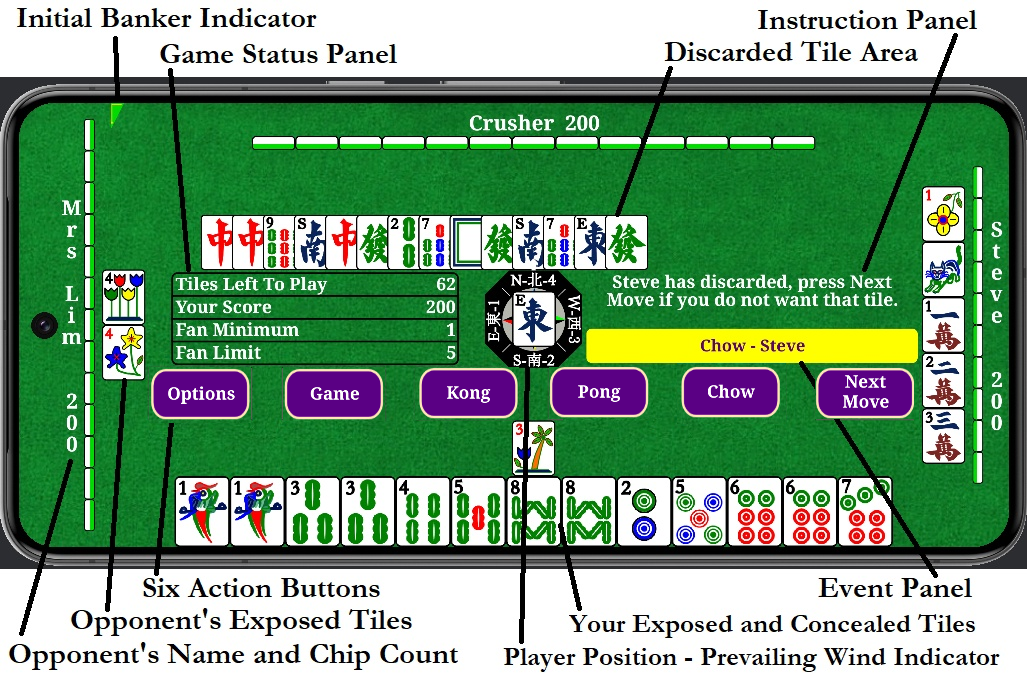
The
above picture shows a typical table that a player will see for a mahjong game.
The definition and function of the fields are as follows:
Discarded Tile Area:
Contains the in-order discarded tiles from left to right. Normally, only the
last 21 discarded tiles are displayed. However, if a player needs to view all
the discarded tiles, then the player can tap anywhere on this area and all the
discarded tiles will be displayed. This is demonstrated in a later picture.
Your Exposed and Concealed Tiles: The
tiles on the bottom of the screen represent a player s Concealed Tiles and the
tiles directly above represent the player s Exposed Tiles. When a player wants
to discard a tile, then tap on that particular tile.
Instruction Panel: This
area displays the current action that was taken and instructs the player what
to do next.
Game Status Panel: This
area displays the current status and settings of the game.
Initial Banker Indictor: This
green triangle is placed to the left of the player (from the player s sitting
perspective) that is the banker at the start of the round.
Six Action Buttons: The
Action Buttons allow a player to take action during the game. The Options
buttons allows for different player selections which will be shown later. When
a player wants to win a game, the player will tap the Game (or Win Game) button. There is no
penalty for tapping the Game button when the player cannot actually win the
game.
Opponents Exposed Tiles: This
area displays an opponent s Exposed Tiles. Each opponent has their own Exposed
Tile area.
Opponents Name and Chip Count: This
area is where an opponent s name and chip count is displayed.
Player Positions and Prevailing Wind
Indicator: The tile in the center shows the Prevailing Wind for the
current game. The compass showing the four positions of East, South, West, and
North refer to each player position for the current game.
Event Panel: This
area displays events that just occurred in the game. Events include when an
opponent Chows or Pongs, and when players receive an immediate chip payout
which includes, Kongs, Animal Set, Flower Set, Animal Pairs, and Flower Pairs
(if enabled).
Options button: When
the player taps the Options button, the following options will be displayed as
shown in the picture below.
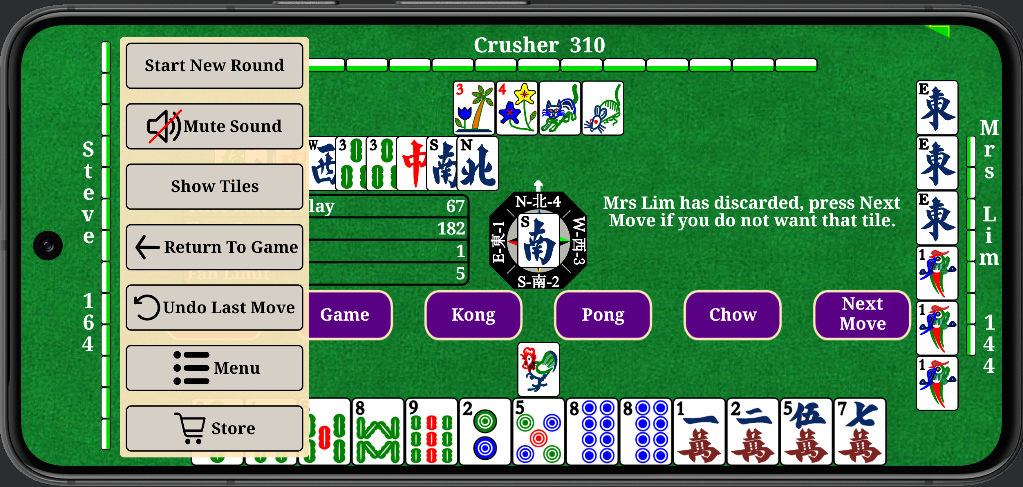
Start New Round: Tapping
this button will begin the process for starting a new round. New player seats
will be selected and the chip counts will reset to 200. This only is used when
a player wants to initiate a new round before the current round is complete.
Mute Sound: This
allows the player to mute (or unmute) the sound.
Show Tiles: Tapping this button will display the
opponent s Concealed Tiles.
Return To Game:
Tapping this button returns a player to the game.
Undo Last Move:
Tapping this button will undo the last move. Note, only one move can be undone.
Also, once someone has won the game, this event cannot be undone. When there is
no move to undo, then the button will not appear.
Menu: Tapping this button brings
the user into the menu mode where a number of different menu options are
available. The menu selections are explained below.
When
the opponent to the left of the player discards a tile, then that tile will be
highlighted in red as shown in the picture below.
Store: (Not available on all versions) Tapping this button
will bring the user to the Store where different game options can be purchased.
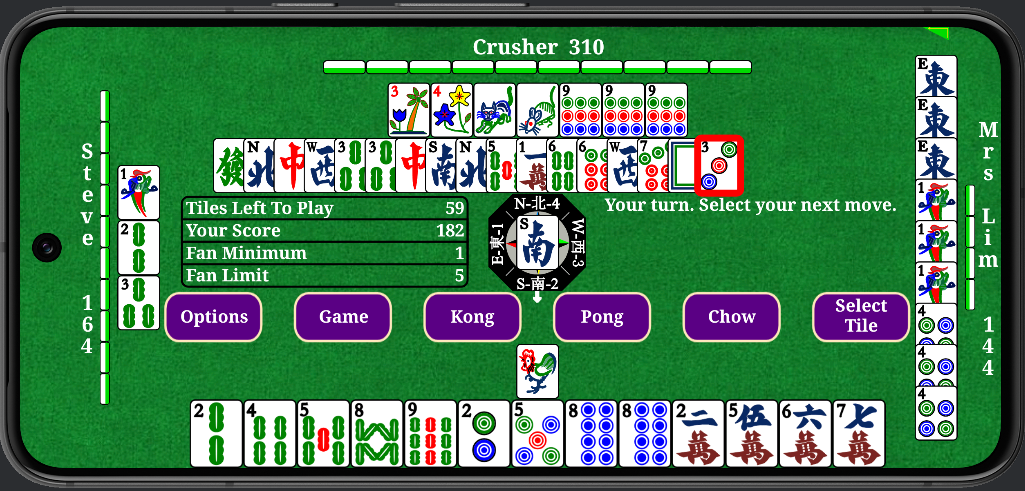
When a
player has the option to select a new tile, then the Action button on the far
right changes from Next Move to Select Tile (or Draw Tile) as shown in the picture above. When
a discarded tile is highlighted in red, this means that the Right Player has
discarded the tile and you have an option to Chow that tile. When a player
wishes to form a Chow with the discarded tile, usually the tiles from the
player s Concealed Tiles are automatically moved to Exposed Tiles. However, in
the case where multiple Chow combinations exist, this cannot be automatically
done. In this case, the player must select which Concealed Tiles will be moved
to the Exposed Tiles by tapping on the appropriate tiles.
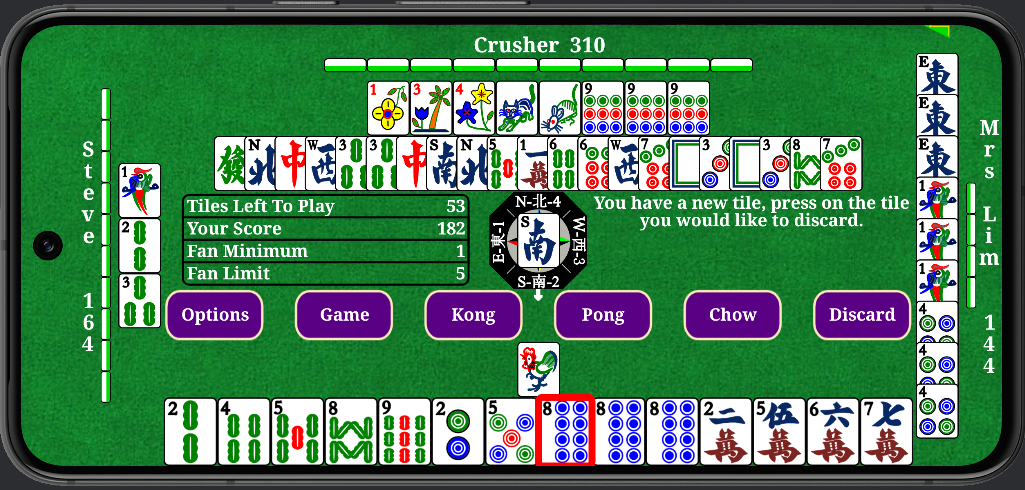
When a
player selects a new tile from the tile wall, the new tile will be highlighted
in red as shown in the picture above. Notice that the Action button to the far
right has now changed to Discard . If the player wants to discard the newly
selected tile highlighted in red, then the player can tap the Discard Action
button to the far right. Alternatively, the player can discard any of the
Concealed Tiles by tapping on an individual tile.
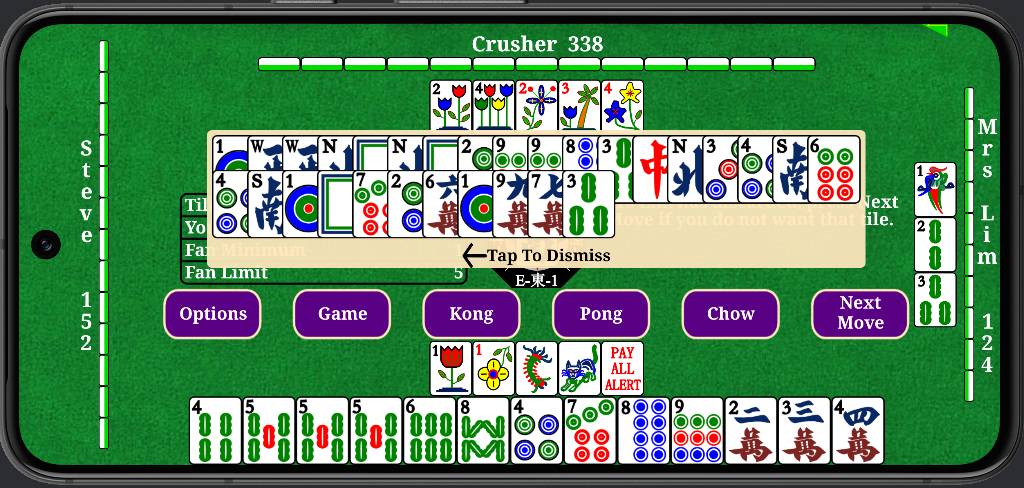
The
Discard Tile Area only shows the last 21 discarded tiles. When there are more than 21 discarded tiles,
a Tap to Expand prompt will appear. If the player would
like to see all the discarded tiles, the player can tap on any of the discarded
tiles and the complete set of discarded tiles will be displayed as shown in the
above picture. The user can return to the game by tapping on the displayed
discarded tiles.
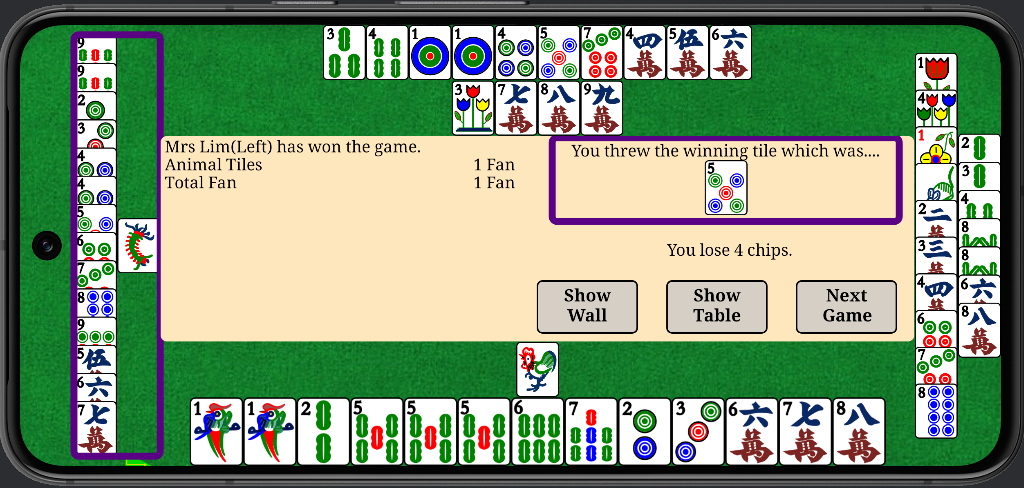
The
picture above shows the case when a player wins a game. All the Concealed Tiles
will be shown and the winner will be indicated with a purple box. The details
of the Fan count are displayed along with the information on the winning tile.
Whether the player selected the winning tile or who the winning tile was
discarded by is also displayed. The player has three options after the game is
won. The player can view the discards and the contents of the tile wall (by
pressing Show Wall ), can see the table contents (by pressing Show Table , or
can proceed to the next game (by pressing Next Game ).
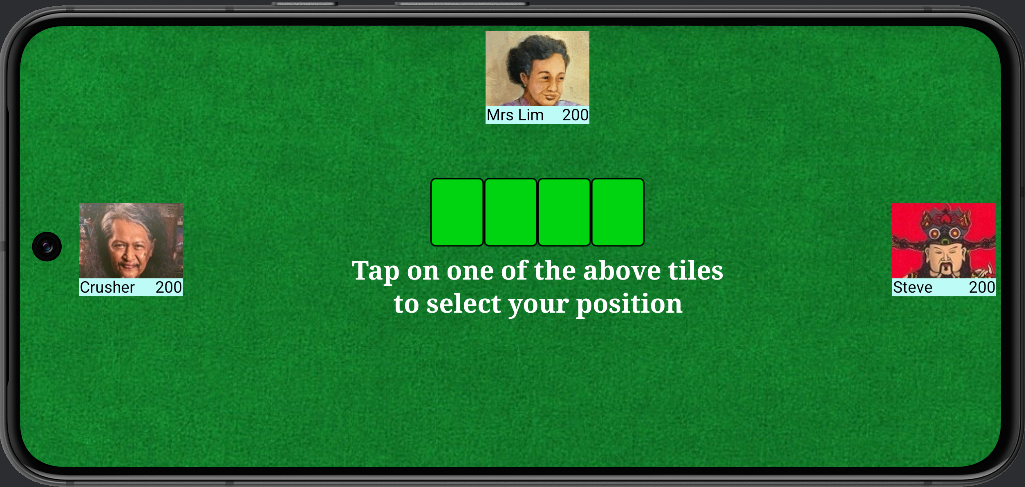
When a
new round is started, new seat positions need to be selected. In this case, the
player will be presented with the display shown above. The player must tap on
one of the four flipped tiles presented. This process will determine the new
seat assignments for the new round.
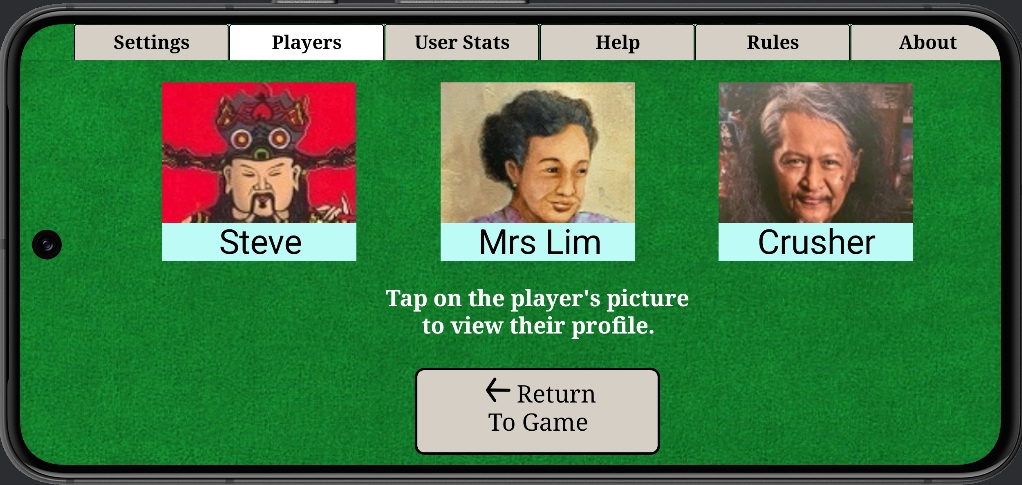
Selecting
the Menu option, will bring the player to the area where different
informational screens are available. To move to different screens, the player
taps on the desired tab at the top of the display. The picture above shows the
Players screen which shows the opponents and gives access to their player
profiles. Tapping on Return To Game will return the player to the game.
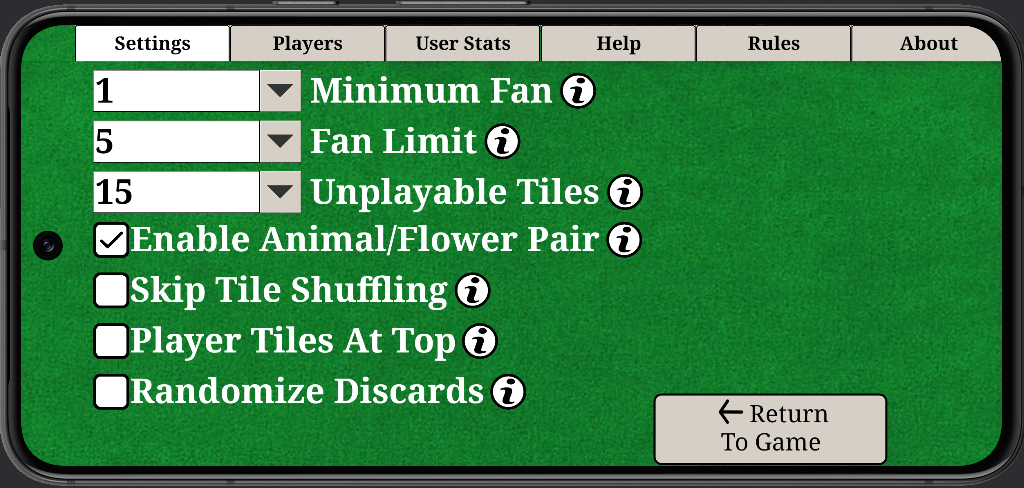
The
Settings screen shown above allows the player to select different game
options. Tapping the information icon (the i button) gives an explanation of
the setting.
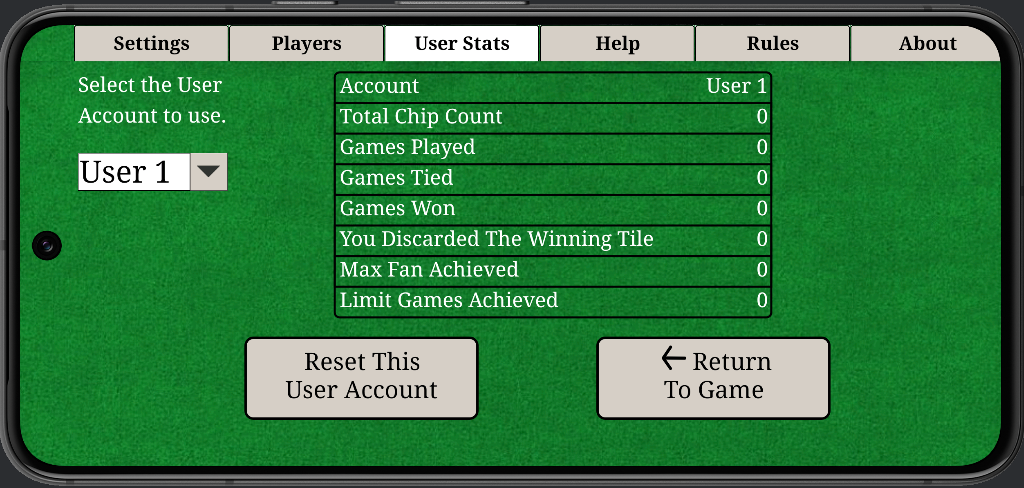
The
User Stats screen shown above provides the player with game statistics for
the player. There are four different user accounts that can be set. When a user
account is set (in this case User 1 is selected) all the player activity will
be logged under this account.
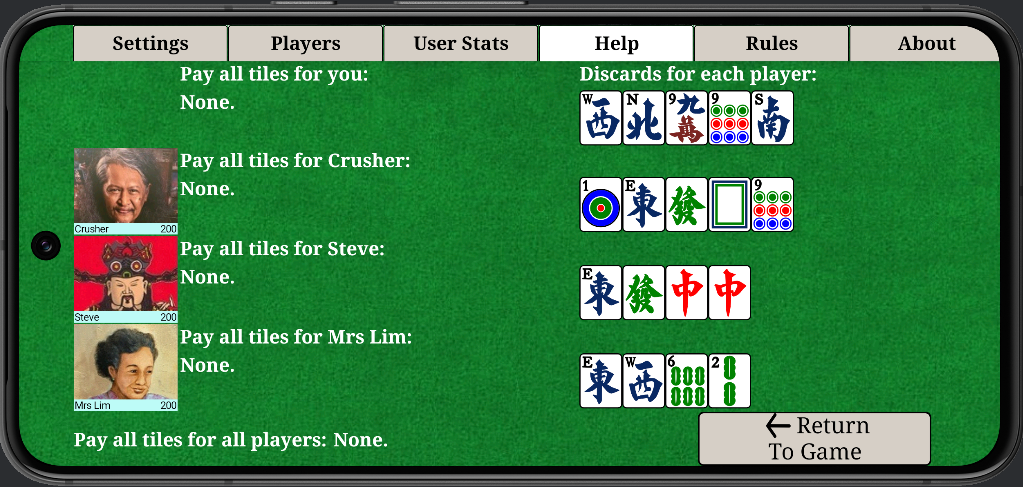
The
Help screen shown above provides the player with information on discarded
tiles from each player and potential pay all discards if any.
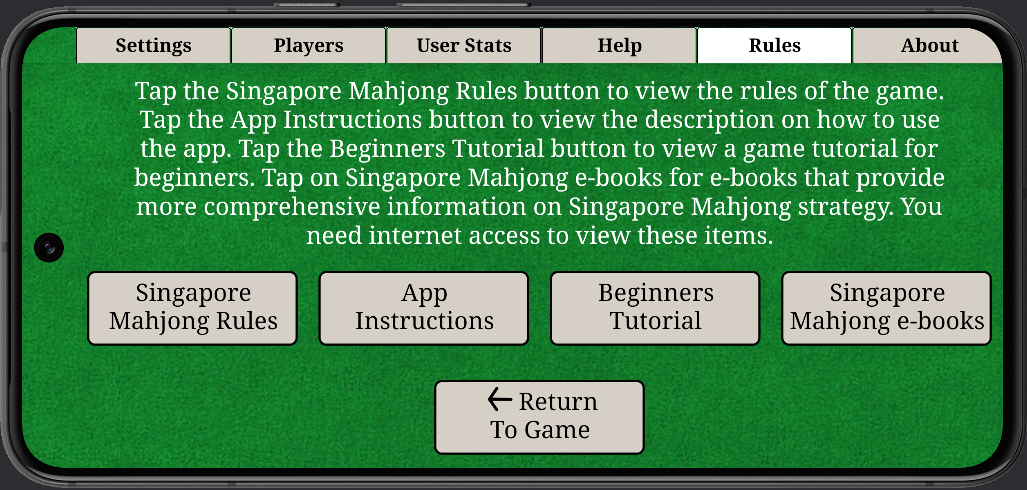
The
Rules screen provides a link to the game instructions and the rules for
Singapore Mahjong.
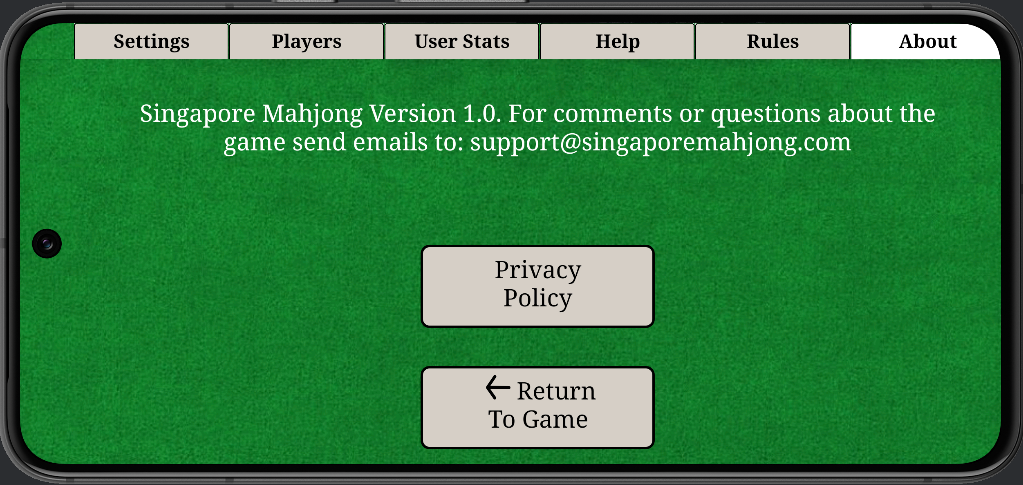
The
About screen provides information about the game. The Privacy Policy can be
accessed from this screen as shown above.